MatteScale
Keep the picture you fell in love with.
I made MatteScale because a new frame should not have to cost you the edges of a favorite photo. Add a border, try a different shape, and keep the whole picture in Fit mode. If a crop suits it better, switch to Fill.
Windows and macOS · Free or $3.99 Pro · No subscription
A walkthrough of framing and batch export
Find a frame you like
Try a square or a tall frame, then choose a border color. This Fit preview keeps the whole photo visible as you experiment.
Frame shape
Matte color
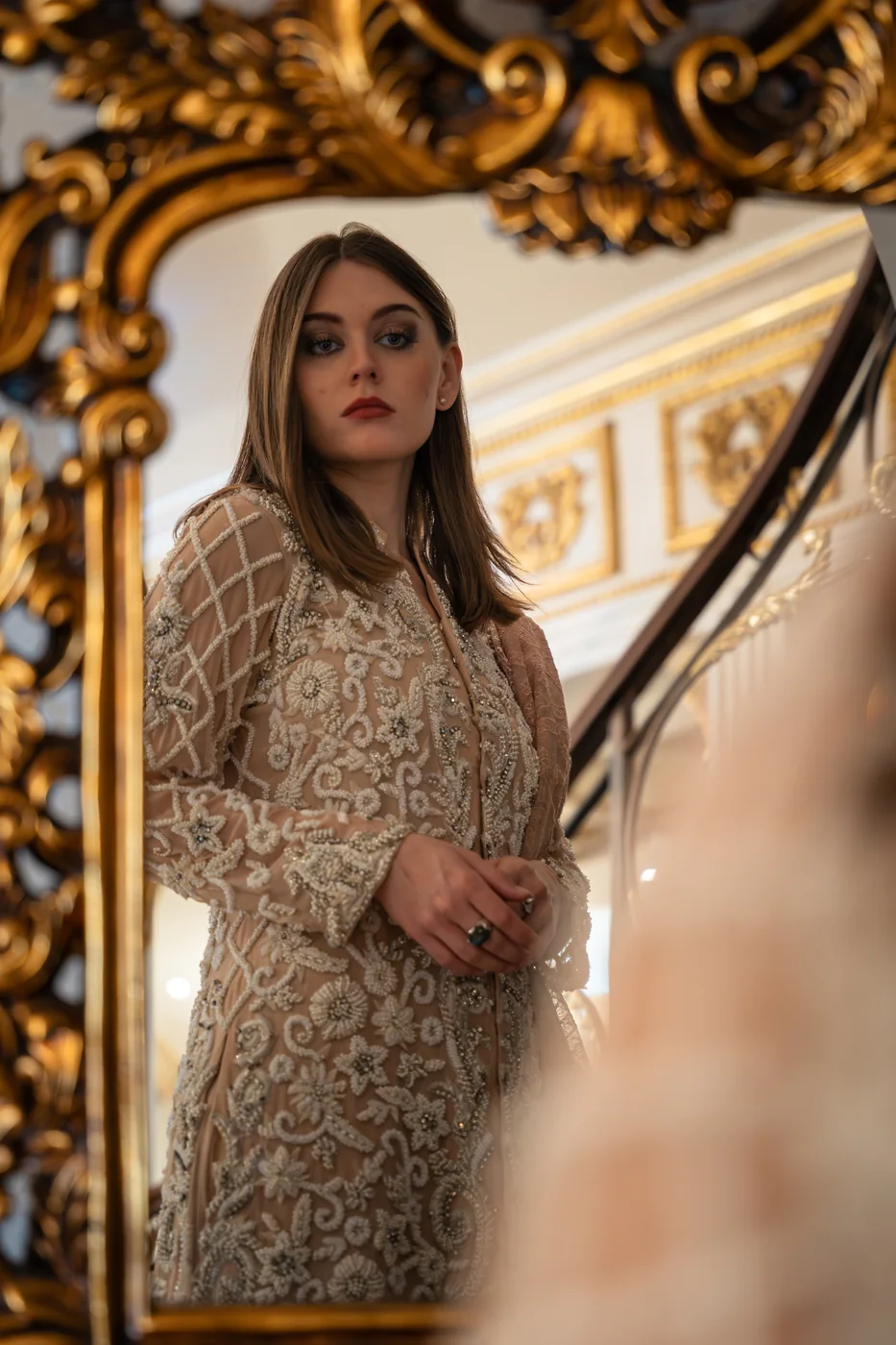
Different photos, one frame shape. All frames adapt in real time to your matte presets. Click any photo to inspect it on the main stage.
Fill the square or keep the whole photo
Both panels use the same 3:2 photo and the same 1:1 canvas. The crop fills it; the matte keeps the complete composition.
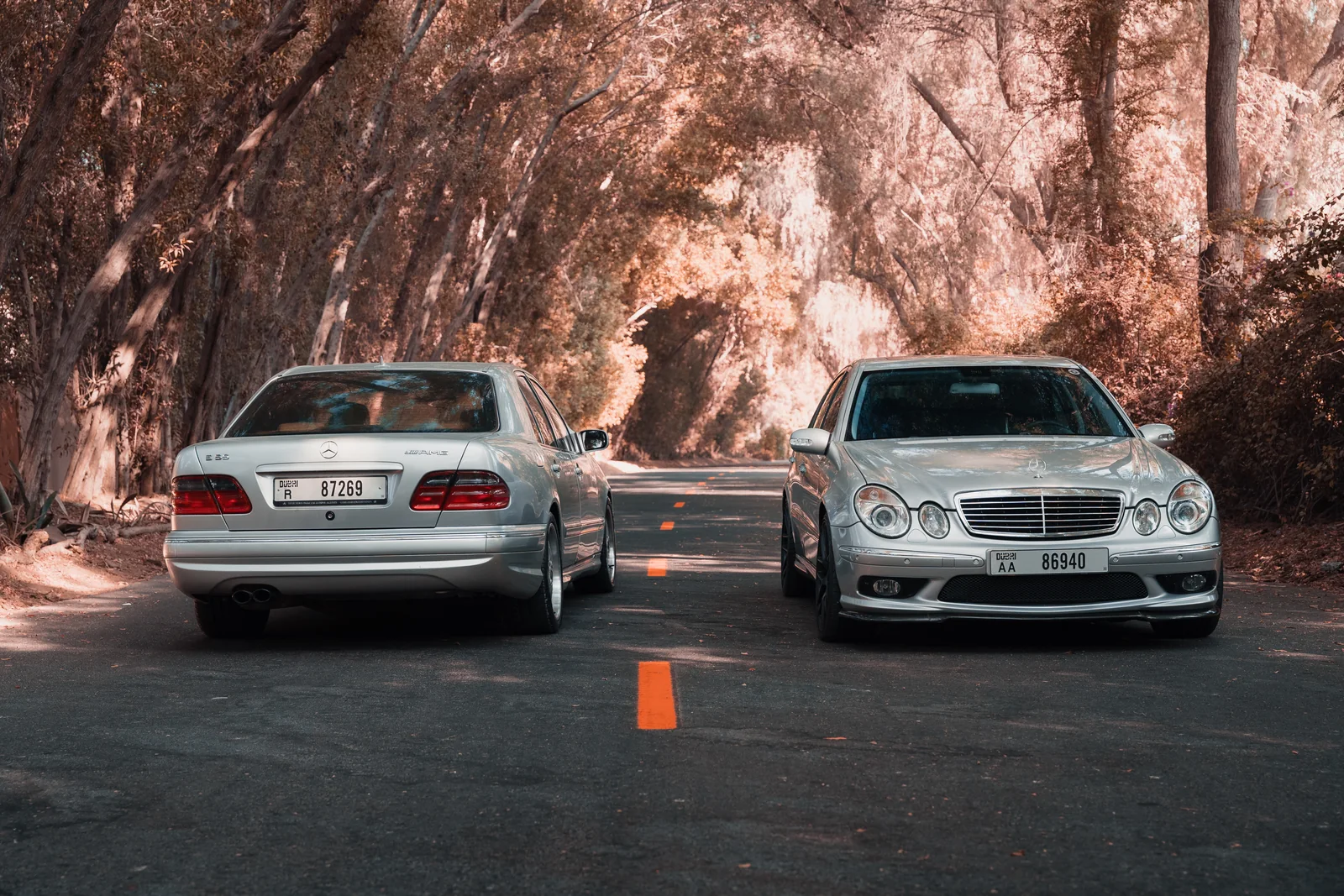
Fills the square and trims the wide photo at its left and right edges.
Keeps the whole 3:2 photo and adds white space inside the same square output.
Inside MatteScale.
Choose a shape, set the border, then check the whole batch in one workspace. The controls and results stay together while you prepare a consistent set.
Bring in your photos.
Select Import and choose the images you want to frame together.
Choose the frame.
Pick a ratio, border width, and background, then review the set in the grid. Fit keeps every edge visible; Fill lets you crop.
Export the set.
Click Export to choose a destination and filename style. Pro adds Instagram sizes, sharpening, and quality controls.
Free and Pro
One favorite at a time
Try any frame shape with one photo at a time and up to 5 exports a day. The Free edition has no watermark, time limit or account.
A matching look for the whole set
Give a whole folder the same border and background, with unlimited exports. Pro adds Instagram-ready 1080px and 1440px sizes, sharpening and quality controls. $3.99 once.
A few things you might wonder
Does MatteScale add a watermark to my photos?
No. Exports are clean, full quality, and yours to keep.
Do my photos get uploaded to any servers?
No. Everything runs offline and your photos never leave your machine.
What does Pro add over the Free edition?
Free frames one photo at a time with up to 5 exports a day. Pro removes both caps and adds the Instagram-optimized export pipeline.
Which export formats are supported?
Full-resolution JPEG and PNG, plus Instagram-optimized 1080px and 1440px presets with adjustable sharpening and live preview.
How do I get the app?
Choose your computer and edition on Gumroad. Free costs $0; Pro is $3.99 once. Both work without a subscription.
Requirements and fine print
Windows 10 or later (64-bit), or macOS 11+ on Apple Silicon or Intel with Safari/WebKit 16.4+. Photos are processed on your computer. The Mac build is unsigned and not notarized; follow Apple's opening guidance if macOS prevents it from opening.
Get MatteScale.
Choose Windows or macOS, then pick Free or Pro. Start with Free to try it with your own photos, or get Pro for $3.99 once.
Choose your download